By Jay Jung · Reviewed 14 September 2026
A passkey can remove the need to type an account password into a sign-in page. The important household question is not only how to create one, but where it is stored and how you will regain access if a phone or security key is lost.
Understand what unlocks what
A passkey uses a public/private key pair associated with a service. Your fingerprint, face or device PIN can authorise its use; those are not a new password that you send to every website. Apple and Google explain that biometric information used for this purpose remains on the device. Passkeys are designed to resist phishing, but they do not make an unlocked or compromised device harmless or stop every scam.
Choose storage deliberately
ASD advises using a trusted personal device and a reputable password manager, avoiding shared devices and employer-owned devices for personal accounts. Some passkeys can sync through a provider; others stay on a particular device or hardware key. Do not assume a passkey created on one device will automatically appear everywhere else.
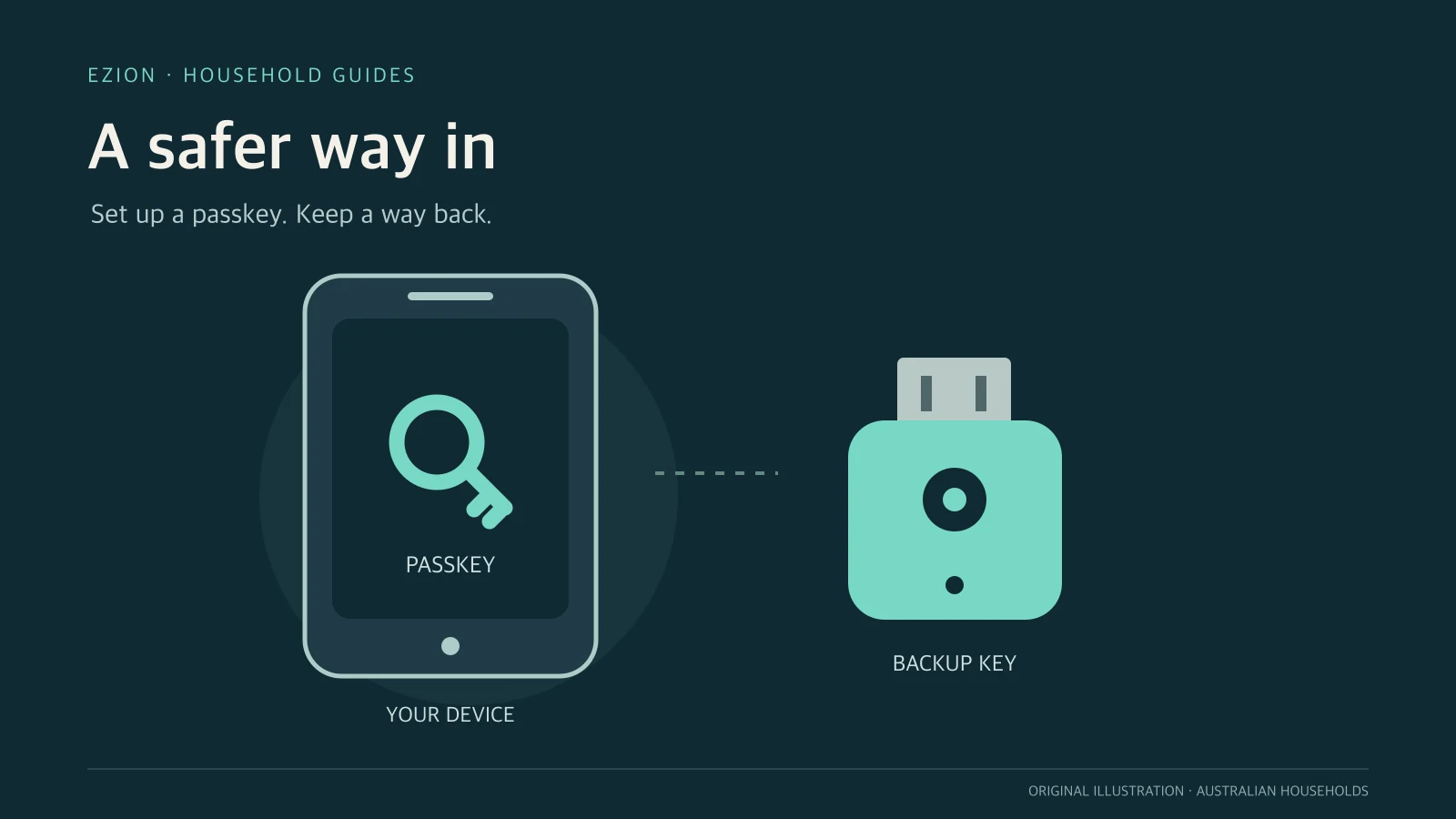
For an important account using FIDO2 security keys, ASD recommends a second key as a backup. That means registering an additional supported credential, not photographing a key or copying a fingerprint. Follow the service’s documented process and keep the backup separately.
Add first, test recovery before removing anything
Open the service directly and use its account-security settings. After adding a passkey, test normal sign-in and check an independent supported recovery route while you still have access. Google explicitly says adding a passkey does not remove the account’s existing authentication or recovery factors. Do not assume an old password has stopped working.
ASD recommends disabling password sign-in after adopting passkeys. Apply that only where the service supports it and after verifying recovery; deleting a password from a password manager is not the same as disabling it at the service. Managed accounts may have different rules.
Plan the lost-device case
Record which provider stores the credential and where its official recovery instructions are. Synchronisation can provide redundancy but is not a guarantee of access after every device is lost. Review recovery contacts, trusted devices and the service’s credential-revocation process. Do not claim passkeys can never be shared: Apple supports sharing in Passwords, so capabilities depend on the provider and account.
Make an account-by-account adoption list
Begin with a service that supports passkeys and whose recovery settings you understand. Open its official app or type its address yourself, rather than following an unexpected message asking you to “upgrade security”. Confirm that the account shown is yours. On the create-passkey prompt, pay attention to the selected storage destination; a browser, password manager and hardware key are not interchangeable labels.
- Update your trusted personal device and enable its screen lock.
- Read the service’s passkey and recovery instructions before changing settings.
- Create a passkey from the service’s account-security page and note the storage provider in a private account inventory.
- Keep the original signed-in session available while trying a fresh sign-in in a separate session on a trusted device.
- Check which fallback or additional credential actually works independently of the phone you might lose.
- Only then review whether the service allows password sign-in to be disabled.
The inventory should name the account, storage provider and recovery method, not contain secret codes in an ordinary shared note. Keep recovery codes, where a service issues them, in an appropriately protected location that remains accessible if the primary phone is unavailable. Do not deliberately lock yourself out to test recovery.
Know the difference between sync and a backup route
Google Password Manager can make stored passkeys available on supported devices signed in to the same Google Account. Apple describes end-to-end-encrypted synchronisation through iCloud Keychain. These are provider-specific capabilities, not proof that any passkey will appear in every browser or password manager. Check the destination on the new device and the provider’s current requirements before retiring the old one.
Two devices relying on the same synchronised vault offer convenience, but they can share a recovery dependency. Ask a more useful question: if the phone and access to its storage account were unavailable, what supported route would remain? Depending on the service, an already registered spare FIDO2 key or another documented recovery method may help. A security key is only a backup for an account where it has actually been registered; buying one and placing it in a drawer does not register it.
Moving to another device or signing in nearby
Before replacing a phone, confirm access on the new device while the old one is still available. Check both the password manager and the individual service. Do not erase, sell or remove the old device’s only credential until the new route has been verified. This is especially important for credentials tied to one device or hardware key rather than synchronised storage.
A supported computer sign-in may offer a QR code so a nearby phone can approve the login. Follow the service and operating system’s instructions, which may require Bluetooth and physical proximity. That is not the same as copying the passkey onto the computer. Start this flow yourself on a trusted sign-in page; do not approve an unexpected request or scan a code sent by someone claiming to provide account support.
For an illustrative troubleshooting case, suppose a passkey works on your phone but is not offered on a new laptop. Do not immediately delete and recreate it. First confirm the website account, then identify the manager in which the credential was saved. Check whether the laptop is using that provider on a supported browser and operating system, and whether the required account and sync settings are enabled. If the credential is device-bound, absence from the laptop may be expected rather than evidence of a broken account. Use the service’s supported nearby-device flow or another registered method while you investigate.
If a nearby-phone prompt stalls, check the provider’s requirements for Bluetooth, proximity and screen lock before changing account security settings. Confirm that you initiated the request and that the phone shows the intended service. Cancel an unfamiliar prompt. When asking official support for help, describe the device, browser, storage provider and the step that failed; do not include a device PIN, recovery code or password. Troubleshooting should establish which part of the sign-in path is unavailable, not give another person the means to unlock it.
A useful recovery rehearsal is a written walk-through, not a forced lockout. In an illustrative household using a synchronised vault, name the route to recover the vault account separately from the route into the website. Identify which steps require the missing phone. If every alternative leads back to it, consult the service’s documented options while access still works. Do not describe the setup as independently recoverable until that dependency has been addressed.
If a phone or key goes missing
- From another trusted device, use the provider’s official lost-device and account-recovery instructions. Avoid search advertisements or callers selling recovery assistance.
- Use the previously checked alternative sign-in method if available. Recovery availability and waiting periods depend on the provider and your account settings.
- Review active sessions and registered credentials at each affected service. A lost-device action in one ecosystem is not evidence that every website session has ended.
- Revoke the lost credential or device through the relevant service’s supported process after establishing a working access route. Follow any urgent compromise instructions from the provider.
- Register and test replacements, then update the private account inventory.
If you suspect someone can unlock the missing device, treat this as an account-security incident, not merely a convenience problem. Device locks, storage-account security and service recovery all matter. A passkey protects a sign-in exchange; it does not make every action taken from an already signed-in device trustworthy.
Shared households are not shared identities
For personal accounts, use each person’s own trusted device and account. Do not teach a family member to unlock your entire phone just so they can reach one household service. Where a service offers household members or delegated access, consider that instead of sharing the owner’s identity.
Apple Passwords supports sharing passwords and passkeys with selected people. That does not mean every provider supports the same sharing, nor that every service permits an account to be shared. Check both, understand who receives access, and review membership when circumstances change. Work and school accounts may restrict passkeys or enforce an administrator’s recovery procedure; follow those policies instead of substituting a personal vault.
Before calling the setup finished
- I know which account and provider hold each passkey.
- I can complete a new sign-in, not just reopen an existing session.
- I have checked a supported alternative that does not depend only on my primary phone.
- I know whether password sign-in still exists and have protected any remaining password with a unique password and supported MFA.
- I know where to remove a lost credential and review sessions.
- I have not removed passwords or recovery factors merely to make the setup look passwordless.
If a service does not support passkeys, use its strongest supported authentication and a unique password or passphrase rather than delaying basic protection. This is a source-led setup guide, not a hands-on comparison or a guarantee that an account cannot be compromised.
Related guides
- How to Secure Smart Home Devices: A Practical Guide
- The Complete Home Network Setup Guide for Australian Homes
- Home Backup in Australia: Cloud, External Drive or NAS?
Sources and scope
Official guidance reviewed on 14 September 2026. Service features and product compatibility can change; check current instructions before acting.