By Jay Jung · Reviewed 30 August 2026
A backup is not the folder beside your original, a second copy on the same laptop, or a cloud folder that mirrors every deletion. A useful backup is a separate, recoverable copy of information you would struggle to replace: family photos, study and work documents, financial records, creative projects, device settings and exported account data.
This guide builds a practical home backup plan for Australian households using cloud storage, an external drive or a NAS. It focuses on recovery rather than products. For the network that carries local backups, see our home network setup guide. To reduce account and device compromise, use the smart-home security guide. For keeping essential access during an outage, read our NBN outage continuity guide.
Important: This is general technology guidance, not a guarantee against data loss or a recommendation of a particular service. There are no affiliate links. Features, storage limits, retention periods and recovery tools change. Check the current terms and test restoration with your own devices before relying on any backup.
Start with the recovery question
Do not begin by shopping for a NAS. Begin with: “If this device vanished tonight, what would I need tomorrow?” List the devices and accounts that hold irreplaceable information. Include phones, tablets, computers, camera cards, external drives, cloud photo libraries, email, password managers and any household server. Then identify the owner of each collection and the person who could recover it if the usual owner were unavailable.
Separate replaceable data from unique data. Apps and streamed media can usually be downloaded again. Your own photos, tax records, manuscripts, scans, design files and locally stored messages may not. Also record data that lives only inside an app. A service may offer sync without a complete export, or may retain deleted files for only a limited time. Where practical, create periodic exports in a documented format.
The Australian Signals Directorate’s Australian Cyber Security Centre says backup frequency should reflect how often data changes and how important it is. That is a better rule than copying everything once a year. A student editing an assignment daily may need daily versioned backup. A static archive of old photos may need a fresh copy only after new material is added, plus periodic integrity checks.
Use the 3-2-1 idea without turning it into a hobby
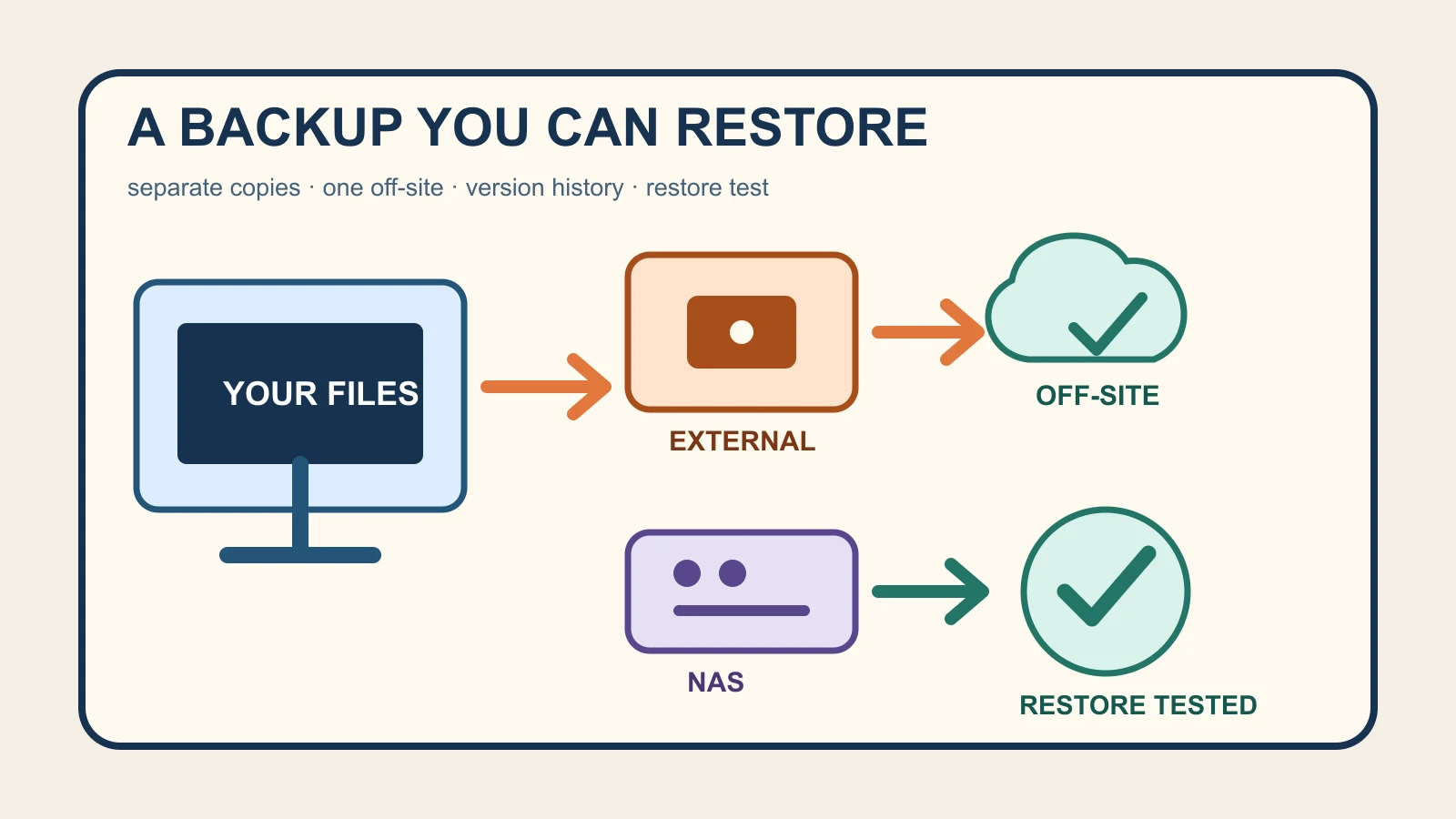
The familiar 3-2-1 pattern means keeping three copies of important data: the working copy and two backup copies, using two storage types, with one copy away from the home. It is a useful target, not a magic certification. A straightforward household version is:
- Copy 1: the files on your computer or phone.
- Copy 2: an automatic backup to an external drive or NAS at home.
- Copy 3: an encrypted cloud backup, or a rotated external drive stored securely elsewhere.
Each copy addresses a different failure. The local copy makes large restores fast. The off-site copy survives theft, fire or flood affecting the home. Version history or an offline copy can survive accidental deletion and some ransomware events that are synchronised to connected storage. If one product or account controls every copy, one lockout or configuration mistake can still defeat the whole plan.
Do not count partitions on one disk as different copies. Do not count a RAID mirror as a backup: RAID can keep a NAS running after one drive fails, but deletion, malware, theft, controller failure and fire can affect the mirrored data together. Likewise, synchronising a folder to several devices improves access, but a deletion or corrupted file may propagate to all of them.
Cloud, external drive or NAS?
Cloud backup
Cloud backup is usually the simplest off-site copy. Automatic upload reduces the chance that a person forgets to connect a drive. It also helps when a device is lost with the home’s local equipment. Before choosing a service, check whether it is true backup or primarily sync, how long deleted and older versions remain, whether you can restore many files at once, how account recovery works, and whether multi-factor authentication is available.
Cloud recovery depends on the provider, account access and internet connection. A large restore may take a long time. Keep recovery codes outside the backed-up account and protect the account with MFA and a unique passphrase. Do not assume the cloud copy is independent if every logged-in device can permanently delete it without an extra confirmation or retention window.
External drive
An external hard drive or SSD is inexpensive, direct and fast for a whole-computer restore. Built-in tools can automate the work: Apple documents Time Machine for recurring Mac backups, while Microsoft documents Windows Backup and File History options. Use the current instructions for your operating-system version rather than following an old menu screenshot.
A drive left permanently attached is convenient, but malware or an electrical event may reach it. The ACSC recommends keeping an offline backup and notes that connected drives or cloud storage can be affected by malware or ransomware. A simple rotation uses two clearly labelled drives: one connected only during its backup window, the other disconnected and stored securely, with the roles swapped on a schedule.
NAS
A network-attached storage device can receive backups from several computers and offer fast local restores. It is useful when a household has many devices or a large photo and video library. It is not automatically safer than a USB drive. It is another computer on the network and needs supported software, security updates, strong account protection, restricted remote access, monitoring and its own separate backup.
Use a NAS only if someone will maintain it. Disable unused services, do not expose the management interface directly to the internet, apply updates, use unique accounts where appropriate and enable MFA if supported. Keep the NAS configuration and encryption recovery information somewhere separate. Replication from one NAS to another is useful only if the destination is sufficiently isolated and old versions cannot all be destroyed by the same compromised account.
Design around deletion and ransomware
Version history is what turns yesterday’s good file into a recovery option after today’s overwrite. Check the actual retention policy: the number of versions, the number of days, what happens when storage fills, and whether ransomware protection requires a particular plan. “Unlimited backup” may still have rules for disconnected devices, deleted files or inactive accounts.
At least one copy should not be continuously writable from the normal user account. That may be a disconnected drive, immutable snapshots, a backup account with separate credentials, or a cloud service that preserves prior versions and delayed deletion. The ACSC advises disconnecting an external backup when it is not in use and securing NAS devices because malware can spread to attached storage and home servers are attractive targets.
If you suspect ransomware, stop ordinary synchronisation before connecting a clean backup. Isolate the affected device and follow current incident-recovery guidance. Restoring files onto an infected system can expose the backup again. A backup supports recovery; it does not replace updates, malware protection, safe account practices or professional help where sensitive or business data is involved.
Encrypt without locking yourself out
Backups often contain a more complete record than any single device, so protect them accordingly. Use device encryption and the backup tool’s encryption option where available. Store physical drives securely. Protect cloud accounts with MFA and a unique passphrase. For shared households, decide whether one person should see everything or whether separate encrypted collections are more appropriate.
Encryption creates a recovery responsibility. Record which software created the backup, the encryption method, the account, and where the recovery key is held. Do not store the only recovery key inside the encrypted backup. A password manager, sealed physical record or trusted second person may be appropriate, depending on the sensitivity and household circumstances.
Be careful with family access during relationship changes or safety concerns. Review who can access shared cloud albums, backup accounts and NAS shares. The eSafety Commissioner advises reviewing privacy and security settings and changing shared-account access when personal circumstances change. A technically healthy backup is not safe if an unintended person still has valid access.
Make the schedule boring and automatic
Choose a recovery point objective in plain language: how much recent work could you accept losing? If the answer is one day, the important folders need at least daily backup. Photos arriving from phones may upload automatically, while a desktop archive might back up nightly to a NAS and weekly to an offline drive. Automation should report failures; silence is not evidence that a job ran.
Keep enough free space for version history and growth. Check warning emails and dashboards. A full destination can leave an old successful date looking reassuring while recent files are missing. Add new phones, computers and folders to the plan when the household changes, and remove obsolete devices only after their unique data has been confirmed elsewhere.
Use a short written inventory: source device, protected folders, backup destination, frequency, retention, encryption, responsible person and last restore test. This is more valuable than a diagram nobody updates. Keep the instructions accessible during an outage or account lockout, not solely in the system they describe.
Test a restore, not just a green tick
A backup job can finish successfully while excluding the folder you care about. Once a month or quarter, choose several files created at different times and restore them to a temporary location. Open them. For photos, inspect the image rather than only the filename. For documents, verify content. For an encrypted archive, prove that the recorded key works.
Also rehearse a larger recovery occasionally. Can a new computer discover the backup? Can you sign into the cloud without the lost phone that normally receives approval prompts? Are recovery codes available? How long would it take to download or copy the essential data? The ACSC explicitly recommends testing restores so you know the backup works before an emergency.
Record the test date and result, then delete the temporary restored copy securely. If the restore fails, the correct response is not to keep trusting the status screen. Fix the path, credentials, capacity or format and test again.
A practical one-evening setup
- List the devices, accounts and unique folders you cannot replace.
- Turn on the supported automatic backup or version-history feature for each main device.
- Add one local destination: an external drive for one or two computers, or a maintained NAS for several.
- Add one off-site destination: a reputable cloud backup or a rotated encrypted drive stored elsewhere.
- Enable MFA, record recovery codes and document encryption keys separately.
- Disconnect or isolate at least one recent copy from everyday write access.
- Restore three sample files and write down the date, result and next test.
The best home backup is not the most elaborate. It is the smallest system that automatically creates separate copies, keeps one away from the original failure, preserves older versions and is regularly proven by restoration. Start with the irreplaceable folders tonight; expand only when the first recovery path works.
Official sources
- Australian Cyber Security Centre: How to back up your files and devices
- Australian Cyber Security Centre: Personal cyber security first steps
- Australian Cyber Security Centre: How to protect yourself from malware
- eSafety Commissioner: Manage your digital safety settings
- Apple Support Australia: Back up your Mac with Time Machine
- Microsoft Support: Backup and restore with File History