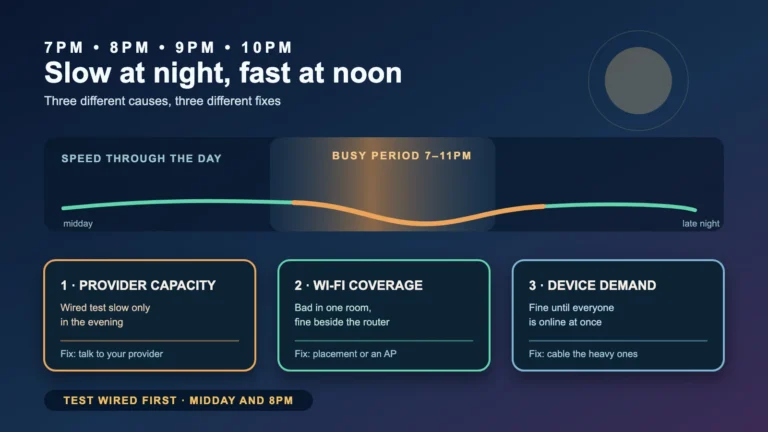
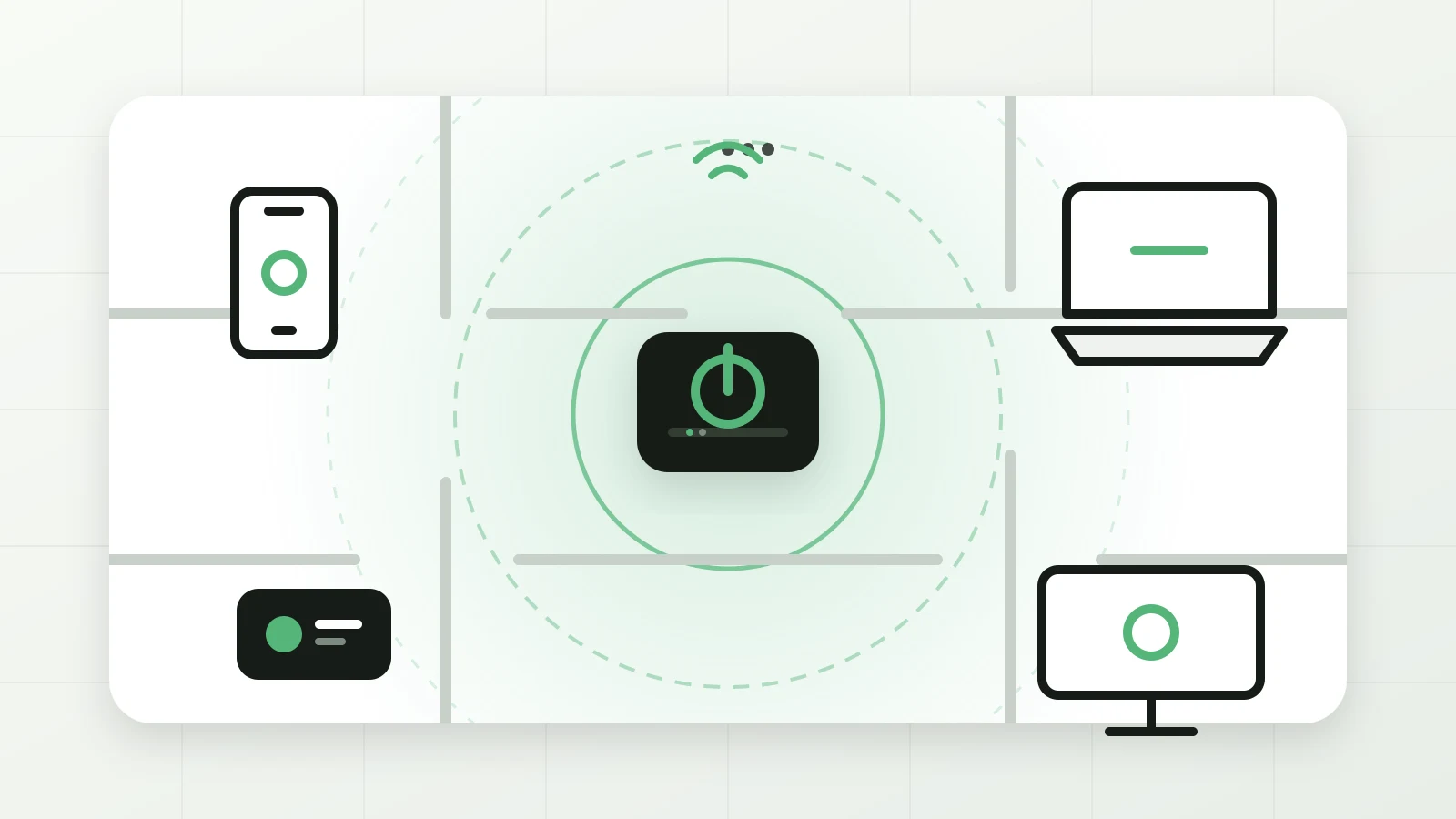
Weak Wi-Fi does not always mean your internet plan is too slow. The problem may be the router’s location, a wall or appliance blocking the signal, congestion from nearby networks, an older device, or the connection delivered to your home.
This practical guide helps Australian households separate those causes before buying a new router or changing plans. It uses no assumed speed target: the useful comparison is between a wired or near-router test and the same-device result in the room where the problem occurs.
Start by separating internet speed from Wi-Fi
Your broadband connection reaches the modem or nbn connection equipment. Wi-Fi is the local wireless link between the router and your phone, computer or television. A poor result on Wi-Fi can happen even when the service reaching the router is healthy.
- Use the same device for each test and pause large downloads or cloud backups.
- Test beside the router on Wi-Fi.
- If practical, test a computer by Ethernet cable.
- Repeat the Wi-Fi test in the room where performance is poor.
If Ethernet and near-router results are also poor, check your provider’s outage page and contact the provider before buying Wi-Fi hardware. If the near-router result is good but the distant-room result falls sharply, focus on coverage and interference.
Move the router before buying anything
Router placement is the cheapest fix and often the most useful. Put the router in an open, elevated position near the centre of the area that needs coverage. Keep it away from metal cabinets, dense masonry, large mirrors, fish tanks and major appliances. Do not hide it on the floor behind a television or inside a cupboard.
A fixed nbn connection point may limit where equipment can sit. You can often use a longer Ethernet cable between compatible equipment and the router, but do not alter fixed telecommunications cabling yourself. The Australian Communications and Media Authority advises using a registered cabler when home cabling needs to be changed.
Choose the band for the job
- 2.4 GHz: usually reaches farther and passes through obstacles better, but it has less capacity and is more exposed to congestion.
- 5 GHz: usually offers more capacity at short range, but weakens faster through walls and distance.
- 6 GHz: available on compatible newer equipment and devices; it can add clean spectrum but has shorter practical reach and does not help older devices.
Modern routers may use one network name and steer devices between bands. Leave that enabled unless a specific device has a documented compatibility problem. Splitting network names can be useful for diagnosis, but maintaining multiple permanent names adds work and can make roaming less smooth.
Reduce congestion without creating a channel project
In apartments and dense suburbs, neighbouring networks share radio space. Start with the router’s automatic channel selection and current firmware. Reboot once after an update or configuration change, then measure again in the same locations. Rebooting every day only hides the underlying problem.
If automatic selection is consistently poor and your router shows channel use, try one documented alternative and compare it. Avoid changing several settings at once; otherwise you will not know which change helped.
Mesh, extender or wired access point?
| Option | Best fit | Main limitation |
|---|---|---|
| Move the existing router | Small or medium home with poor placement | May be constrained by the connection point |
| Mesh system | Larger or multi-storey home needing simple roaming | Wireless links between nodes still lose capacity through distance and walls |
| Wi-Fi extender | One modest dead zone and a low budget | Placement is sensitive and performance can be inconsistent |
| Wired access point | Stable high performance where Ethernet cabling is available | Needs cabling and possibly a registered cabler |
A mesh node or extender must receive a usable signal to relay it. Placing it inside the dead zone is too late. Start roughly between the main router and the weak area, then adjust based on the system’s signal indicator and repeated tests.
Check the device as well as the network
An older phone, laptop, smart television or USB Wi-Fi adapter may be the limiting component. Compare two devices in the same place. If only one performs poorly, update its operating system and Wi-Fi driver, forget and rejoin the network, and check whether the hardware supports the bands used by the router.
For a stationary television, game console or desktop computer, Ethernet can be simpler and more reliable than tuning wireless settings. It also leaves more Wi-Fi capacity for mobile devices.
Keep the router secure
- Install current router firmware and enable automatic security updates when available.
- Use WPA3 Personal or WPA2/WPA3 Transitional for compatibility. Avoid open networks, WEP and legacy WPA/TKIP.
- Replace default administrator credentials with a unique password.
- Use a strong Wi-Fi password and a separate guest network for visitors when the router supports it.
- Do not hide the network name as a security measure; it does not make the network private.
Apple’s current router guidance also recommends a unique network name, the same name across bands, automatic channel selection and WPA3 or WPA2/WPA3 security for compatible networks.
A 15-minute troubleshooting order
- Check the provider’s outage and service-status information.
- Test one device beside the router, then in the weak room.
- Test Ethernet if practical.
- Move the router into the open and higher up.
- Install firmware updates and leave channel selection automatic.
- Compare a second device.
- Only then consider mesh, an extender, Ethernet or a provider plan change.
Record the location, device, connection type and result each time. A short table is more useful than one impressive speed-test screenshot because it shows whether the problem is the service, coverage or one device.
When to contact the provider or a cabler
Contact your internet provider when wired or near-router performance remains poor, dropouts affect all devices, the connection equipment shows warning lights, or the service does not match the provider’s stated expectations. Bring your test times and results.
Use a registered cabler for fixed socket, structured cabling or in-wall Ethernet work. Do not open or modify provider or nbn equipment. The ACMA explains that unsuitable, damaged or obsolete home cabling can affect performance, particularly for some fibre-to-the-node or fibre-to-the-building services.
Related guide
If you are adding mesh nodes, smart plugs or other always-on devices, learn how to estimate an appliance’s electricity running cost using your own bill.
Sources
- Australian Communications and Media Authority — Improving your home internet
- nbn — Optimise your internet setup
- Australian Competition and Consumer Commission — Broadband performance data
- Apple Support — Recommended settings for Wi-Fi routers and access points
Reviewed: 3 August 2026. This article provides general troubleshooting information. Equipment, building materials, service technologies and provider requirements vary. Follow your provider and equipment manufacturer’s instructions.